
Knowing your computer’s operating system is key for everyone. It helps with software, updates, and fixing problems.
When you install new software or fix issues, knowing your system helps a lot. Each operating system needs its own way to identify itself.
This guide will help you with Windows, macOS, and Linux. You’ll learn easy ways to check your operating system quickly, no matter your device.
Knowing your system is also important for downloading software or getting help. It keeps your computer running well and safe.
Understanding the Importance of Your Operating System
Knowing your computer’s operating system is more than just a fun fact. It’s key to making your device run smoothly and safely. Your OS connects your hardware and software, making it vital for many tasks.
Ensuring Software and Hardware Compatibility
Programs are made for specific operating systems. If you install software without checking system compatibility, it might not work right. Also, devices like printers need drivers that fit your OS.
Graphics cards need drivers that match your hardware and OS. This shows how important your OS is for a well-working computer.
Maintaining Security with Regular Updates
Cyber threats are always changing, so security updates are a must. OS makers release patches to fix new security issues. These updates help keep your system safe from malware and hackers.
Microsoft fixed a Zero-Day vulnerability in 2023, showing how updates keep users safe. If you don’t know your OS version, you might miss important security updates.
Facilitating Effective Troubleshooting
When your computer has problems, tech support will ask for your OS version. Different OS versions need different fixes. Knowing your OS version helps techs find the right solution fast.
An IT expert said:
“Knowing the exact OS version cuts diagnostic time in half and leads to more accurate solutions.”
This makes solving complex problems much easier. It saves time and ensures the right fix is found.
How to Find Out What Operating System My Computer Has on Windows
Windows systems make it easy to find out what operating system you have. You can use these methods to check your system details or troubleshoot issues.
Accessing System Information via Settings
The Settings app is the easiest way to see your Windows specs. It works well on recent Windows versions.
Detailed Steps for Windows 10 and Windows 11
For Windows 10, go to Settings > System > About. You’ll see your Windows edition, version, and build number here.
Windows 11 users, click the Start button and choose Settings. Then, go to System > About for the same info.
Both versions show if you’re using a 32-bit or 64-bit system. Knowing this is key for software compatibility.
Recognising Different Editions such as Home or Professional
Windows editions affect what features you get. The Settings app clearly shows if you have Home, Professional, Education, or Enterprise.
Professional editions have more advanced networking and security. Home editions are for basic personal use.
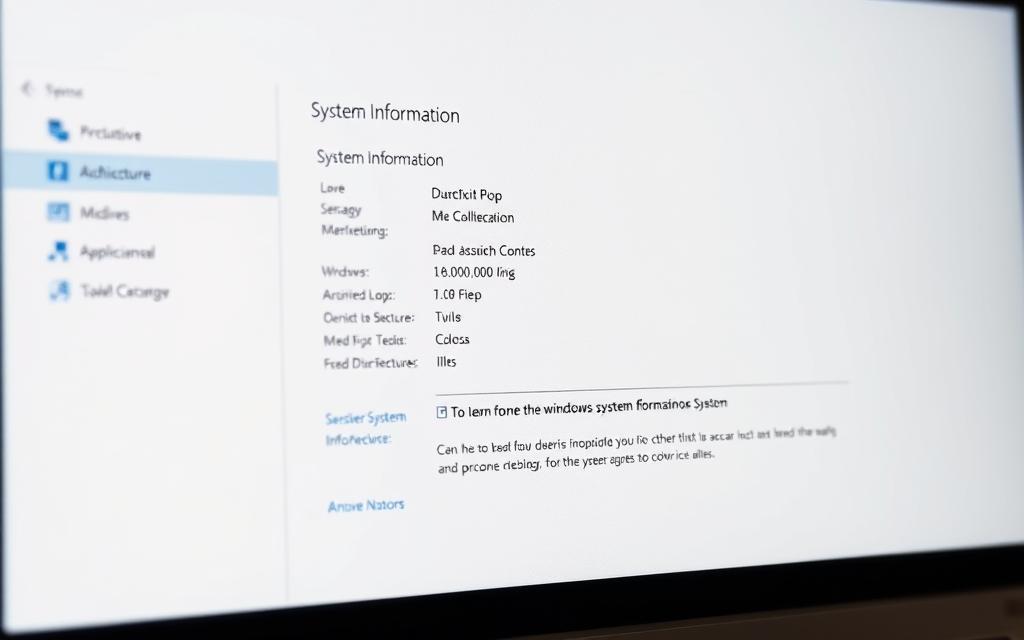
Utilising the System Information Tool
The System Information tool (msinfo32) gives detailed technical info about your Windows. It’s more detailed than basic settings.
Launching and Analysing System Data
Press Windows Key + R, type “msinfo32”, and press Enter. The System Information window shows hardware, components, and software details.
Key info includes:
- OS Name and Version
- System Type (32-bit or 64-bit)
- Build number and installation date
- Hardware specifications
This tool is great for advanced troubleshooting and system analysis.
Employing Command Prompt for Quick Checks
Command-line methods give fast access to system data. They’re useful for power users and IT pros.
Essential Commands like winver and systeminfo
The winver command shows a dialog box with Windows version and build info. Just type “winver” in the Run dialog (Windows Key + R).
For more system info, open Command Prompt or PowerShell and type “systeminfo”. This command gives detailed output, including:
| Information Type | Example Output | Significance |
|---|---|---|
| OS Name | Microsoft Windows 11 Pro | Identifies edition and version |
| OS Version | 10.0.22000 N/A Build 22000 | Shows specific build number |
| System Type | x64-based PC | Indicates 64-bit architecture |
| Install Date | 15/08/2023, 15:27:45 | Reveals original installation date |
For enterprise users, systeminfo helps tell apart Long-Term Servicing Channel and General Availability Channel versions. This affects updates and features.
These command-line methods offer quick and precise Windows OS version details. They’re very useful for remote administration and scripting.
Determining macOS on Apple Computers
Apple computers run macOS, a powerful operating system. Knowing your macOS version is key for software, security, and support. This guide covers easy ways and tech methods.
Using the About This Mac Feature
The easiest way is through the Apple menu’s About This Mac feature. It gives you quick access to your system’s basics.
Click the Apple logo in the top-left corner. Choose “About This Mac” from the menu. A window will show your computer’s name, macOS version, model, and processor.
Finding Version Details for macOS Monterey or Later
For macOS versions like Monterey (macOS 12) and Ventura (macOS 13), the info is clear. The main window displays the version name and number.
For more build details, click “Version”. This shows the exact build number, important for software revisions.
Apple uses version numbers and California-themed names. Knowing this helps find your exact macOS version.
| Version Number | Marketing Name | Release Year |
|---|---|---|
| macOS 13 | Ventura | 2022 |
| macOS 12 | Monterey | 2021 |
| macOS 11 | Big Sur | 2020 |
| macOS 10.15 | Catalina | 2019 |
Advanced Methods with Terminal
For those who like command lines, Terminal offers detailed system info. It’s great for tech troubleshooting and scripting.
Executing the sw_vers Command for Precision
Open Terminal from Applications > Utilities. Type sw_vers and press Enter. It shows three important pieces of info:
- ProductName: The macOS marketing name
- ProductVersion: The precise version number
- BuildVersion: The specific build identifier
These Terminal commands give exact details about your macOS version. They’re perfect for developers and system admins needing precise specs.
Whether you use the About This Mac interface or Terminal commands, Apple offers many ways to find your operating system. Pick what fits your tech level and needs.
Identifying Linux Operating Systems
Linux is tricky to identify because it has many different versions. Unlike Windows or macOS, Linux has lots of flavours. Each flavour shows system information in its own way.
Graphical Interface Techniques
Most Linux versions have easy-to-use graphical tools to check system details. These tools are a bit different for each desktop environment but are similar in what they do.
Checking System Details in Ubuntu, Fedora, and Others
In Ubuntu, go to Settings > About to see your version and hardware info. Fedora users can find similar info in Settings > Details. Mint or Debian usually have a “System Information” or “About” option in their main menu.
These tools give you a full view of your Linux version. You can see:
- Distribution name and version
- Desktop environment
- System architecture
- Hardware specifications
Command-Line Procedures
The command line is great for detailed info or server setups. It works on almost all Linux versions.
Using lsb_release -a and uname -a Commands
The lsb_release -a command shows Linux Standard Base info. This includes:
- Distributor ID
- Description
- Release number
- Codename
For kernel and architecture info, use uname -a. It shows:
- Kernel version
- System architecture
- Hostname
- Build information
Interpreting Results for Various Distributions
Different Linux versions show info in their own way. Ubuntu shows “Ubuntu”, while Fedora shows “Fedora”. Some special versions might have their own identifiers.
Remember, most Linux versions use modified kernels. The kernel version alone doesn’t always tell you the version you’re using.
To really know your Linux system, use both commands. The info from lsb_release and uname together give you a full picture.
Other Operating Systems and Specialised Devices
Windows, macOS, and Linux are not the only operating systems out there. Many other systems power special devices. They serve unique purposes or work with specific hardware, needing different ways to find their versions and specs.
ChromeOS on Chromebooks
Navigating Settings to Locate OS Information
Chromebooks run on ChromeOS, a light system made for web apps. It’s easy to find system info through the settings menu.
Click the status area in the bottom-right corner of your screen. Then, select the gear icon to open Settings. Go to “About ChromeOS” at the bottom left menu. There, you’ll see your version number, build number, and channel.
This section also lets you check for updates. It’s very important for ChromeOS. Google updates it often to add new features and security.
Mobile and Niche Systems Overview
Brief Guides for iOS, Android, and Less Common OSes
The mobile world includes iOS and Android, leading in smartphones and tablets. Finding your version is similar across devices.
For Apple’s iOS devices:
- Open the Settings application
- Tap “General” followed by “About”
- Locate “Software Version” to see your current iOS version
Android devices differ by maker, but usually:
- Open Settings from your app drawer
- Scroll to “About phone” or “About device”
- Select “Android version” to view your current OS version
There are also niche systems for things like smart TVs and industrial gear. They often have special interfaces or command-line tools. You can find these in device settings or the maker’s guide.
For gaming consoles, smart home devices, or industrial tools, check the maker’s support. They usually have the best tips for finding your OS version.
Conclusion
Knowing your computer’s operating system is key for all users. This article has shown how to find out for Windows, macOS, Linux, and more. It’s important for using software, keeping your system safe, and fixing problems.
For most, using graphical tools like Settings on Windows or About This Mac on Apple devices is the fastest way. For those who need more, command-line methods offer detailed system information.
Checking your OS version often keeps your device safe and running well. This knowledge is important for both personal and professional use. Use these tips to keep your system in top shape.


 By
By